PLATFORM
Horizon.
The following requirements must be met in order to connect Dimensions to a Gamma Horizon installation.
tip After configuring a Horizon connection, a Recording Storage retention profile must be configured to control how long the call recordings should be stored after they have been downloaded. Please refer to the Recording Storage Profiles documentation for more information.
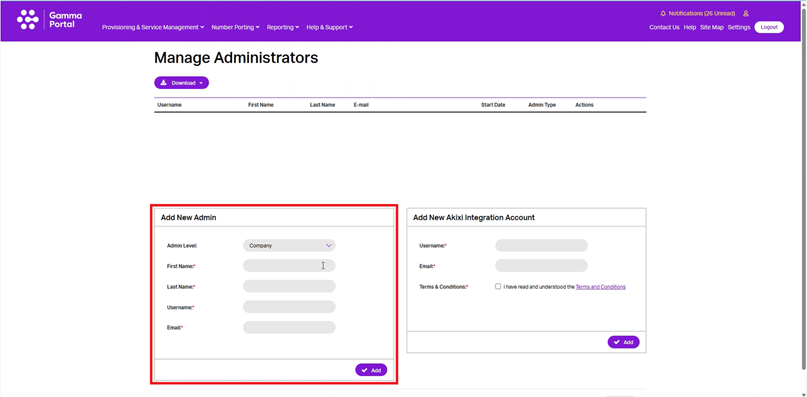
warning Dimensions will change the passwords on these accounts on a regular basis to ensure they do not expire. Do not use these accounts for other purposes as the password changes will cause disruption to any other processes using the accounts. Horizon Portal Usage Details Dimensions uses the Horizon portal to import the customer's users and keep them up to date. This minimizes the amount of configuration required when setting up a new customer and ensures that user information is always up to date in Dimensions without requiring manual intervention. To create a user account, login to your Horizon reseller portal and navigate the customer account. In the 'Manage Administrators' section, create a new user account using the 'Add New Admin' section. Dimensions will import the users when the connection is first added, then check on a 3 hourly basis for any changes to the users on the system. If any changes are detected, the user information in Dimensions will be updated to reflect the changes.
warning The user account must be a dedicated account for use by Dimensions.
info The password on the portal will automatically be updated every 30 days by Dimensions. This is to ensure that the password does not expire and cause disruption to the connection. Recording Portal Usage Details Dimensions uses the advanced recording portal to download call recordings from Horizon. To do this, it requires a dedicated user account on the advanced recordings portal. Please follow the instructions below to create a dedicated account for Dimensions to use.
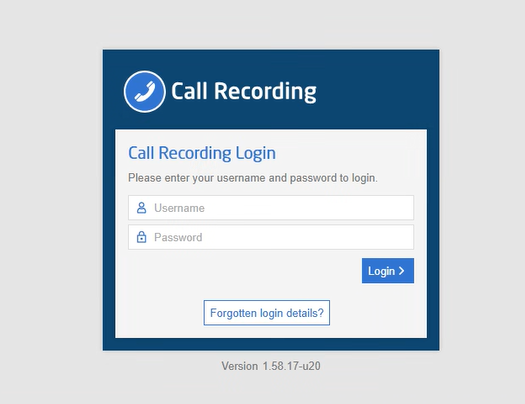
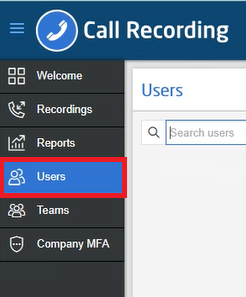
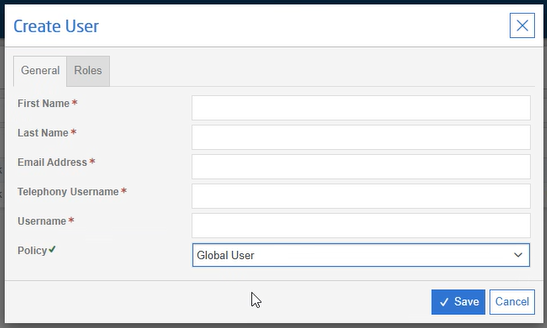
info Dimensions will import a copy of the recordings (for users with Transcription enabled) available when the connection is first added, then check every 15 minutes for new recordings. To create a dedicated user account for Dimensions, login to the advanced recording portal. Navigate to the 'Users' section. Populate the 'Create User' form with the details for the new user.
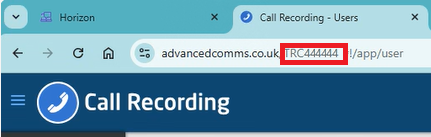
info A valid email address is required to setup the user and configure the password. You can use the '+' email format to have this email come to you. E.g. firstname.lastname+recording@domain. After creating the user, follow the normal user creation steps to set the password. Once completed, enter the following details into the Dimensions form: The 'Customer ID' is in the URL of your recording portal address and is in the format 'TRCXXXXXX'.
warning The user account must be a dedicated account for use by Dimensions.
tip Dimensions will only download recordings for those users configured in the Conversational Intelligence section.
info The password on the portal will automatically be updated every 30 days by Dimensions. This is to ensure that the password does not expire and cause disruption to the connection.Requirements
Requirements
Requirement
Description
Usage
Horizon Portal User Account
https://www.unlimitedhorizon.co.uk/A user account on the horizon portal with permissions to access the 'Users' tab.
Keeps track of user changes on the system to ensure that user information is up to date in Dimensions
Recording Portal User Account
https://advancedcomms.co.uk/A user account on the call recording portal with permissions to download call recordings.
Allows Dimensions to download call recordings for transcription and CI modelling.
Recording Portal Customer Id
It can be found in the https://advancedcomms.co.uk/ URL. E.g. https://advancedcomms.co.uk/XXXXXXX?l=1#!/login/signin. The ID is the portion of the URL after the final forward slash and before the question mark.
User as part of the recording portal authentication.